As an Amazon Associate I earn from qualifying purchases.
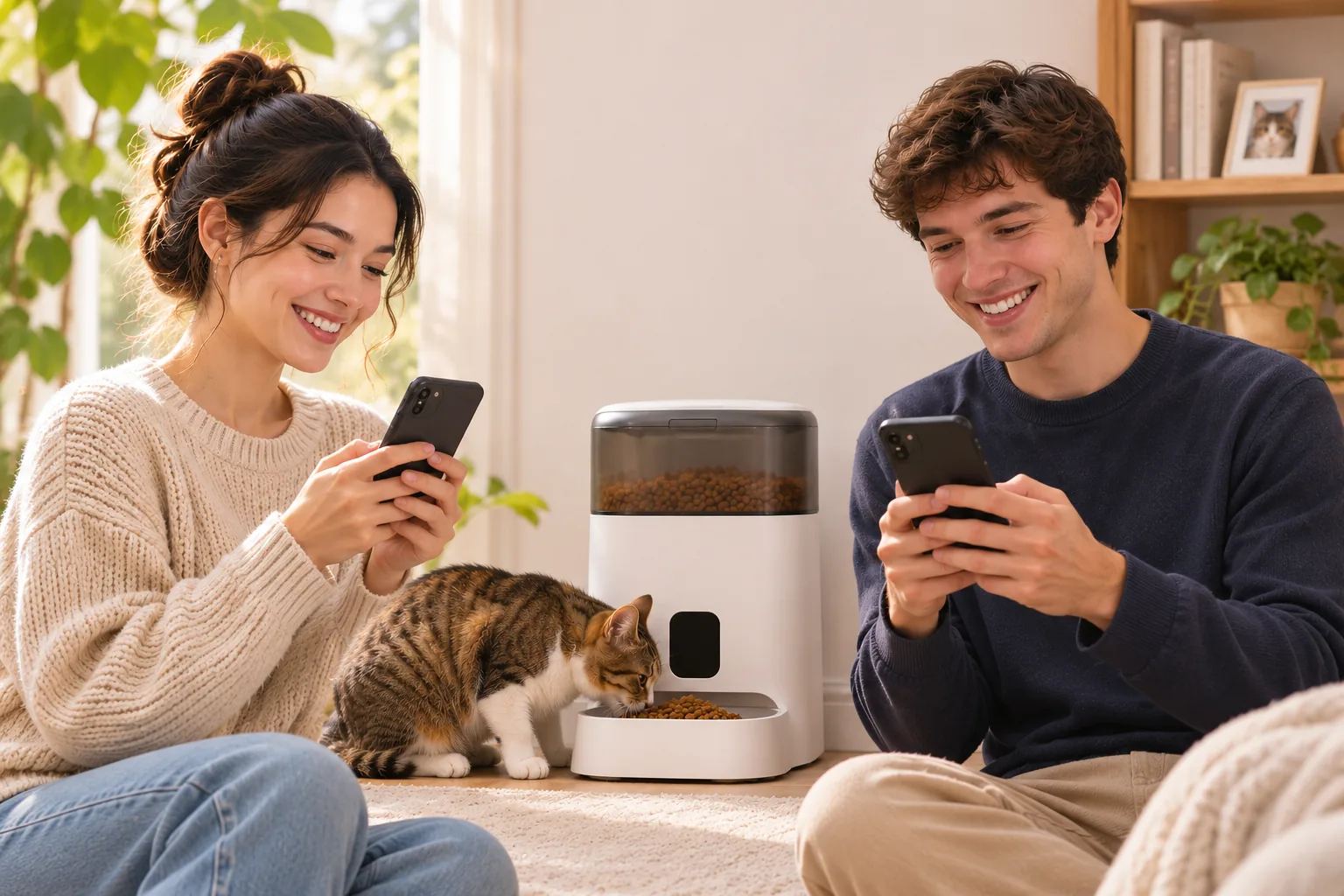
To share a PETLIBRO feeder with family, use the app's device-sharing invitation for the exact feeder and account flow shown by its current support instructions. PETLIBRO's general sharing page uses the invited person's account email; its Australia support page for the AF103 instead describes adding a User ID. The steps are not a universal menu path for every model or app version.
Quick answer: Identify the feeder first. If the general sharing page matches your device, invite the other user's PETLIBRO account email from Device Sharing. If you have the AF103 and are following the Australia instructions, use the recipient's User ID as that page describes. The invited person must accept before shared access is available.
On this page
- Use the general invitation flow
- Follow the AF103 Australia steps
- Check the invitation
- Frequently asked questions
Use the general invitation flow
PETLIBRO's general device-sharing instructions describe this sequence:
- Open the feeder in the PETLIBRO app.
- Open Settings and choose Device Sharing.
- Enter the recipient's email address associated with their PETLIBRO account, then send the invitation.
- Ask the recipient to accept the invitation in their account.
That page says both people need a PETLIBRO account before sharing. It says the invited user can access supported device features after accepting, so do not assume that every device control or record is shared. The page does not list every model or app version that uses these menu labels; if your app looks different, check the current guide for your specific feeder.
Follow the AF103 Australia steps when they apply
PETLIBRO has a separate Australia help page for AF103 device access. It describes a User ID flow:
- Ask the invited person to open the app, go to Me, then Personal Information, and locate their User ID.
- On the feeder owner's app, open Setting, choose Device Sharing, and select Add New User.
- Enter the recipient's User ID, then choose Share and Confirm as the page describes.
The AF103 page says the User ID is typically linked to the registered email address. Its instructions are associated with that model and Australia support page; use them when that exact context fits. The wording differs from the general page, which asks for the recipient email. These pages do not establish one identifier or menu path that applies to every PETLIBRO feeder.
If you have a different model, or cannot tell whether either page applies, check the model label and the official support page linked from that model's product help. Do not guess a menu item based on a different feeder or region. For context on identifying a PETLIBRO model, see our PETLIBRO One RFID feeder guide; its collar tags identify pets and are separate from sharing app access with another person.
Check that the invitation worked
Before troubleshooting, confirm that you sent the invite to the intended account identifier, and ask the recipient to check for and accept the invitation. Then verify that the feeder appears in their app and that the feature they need is available. The general PETLIBRO page refers to supported features rather than promising identical access for every model.
If the invite is missing or the app labels do not match, compare your feeder's exact model and region with the help page. Avoid repeatedly adding users with guessed email addresses or IDs; contact PETLIBRO support if the model-specific flow remains unclear. The PetSafe Smart Feed guide covers a different brand and does not provide PETLIBRO instructions.
Frequently asked questions
Does each family member need a PETLIBRO account?
PETLIBRO's general sharing page says both users need an account, and the invitee must have one before accepting. The separate AF103 Australia page describes using a User ID. Follow the current instructions that match your model instead of assuming the same account flow is documented for every device.
Should I enter the person's email or User ID?
Use the identifier requested by the help page for your model and region. PETLIBRO's general page asks for an email tied to the recipient's account; its Australia page for the AF103 asks for a User ID. The sources do not say these labels are interchangeable across all models.
Does sharing give another person every app feature?
The general page says shared users can access supported device features after accepting the invite. It does not provide a universal permission list. Check the support information for your exact feeder and verify that the recipient can use the feature they need.
Conclusion
For PETLIBRO feeder app access, first match the instructions to the device. The general sharing page uses an account email invitation; the Australia AF103 page describes a User ID. Send the invite through the matching Device Sharing flow, have the recipient accept it, and consult model-specific support if the app or access differs.
Sources (accessed November 19, 2026): PETLIBRO general device sharing; PETLIBRO AF103 Australia device access.