As an Amazon Associate I earn from qualifying purchases.
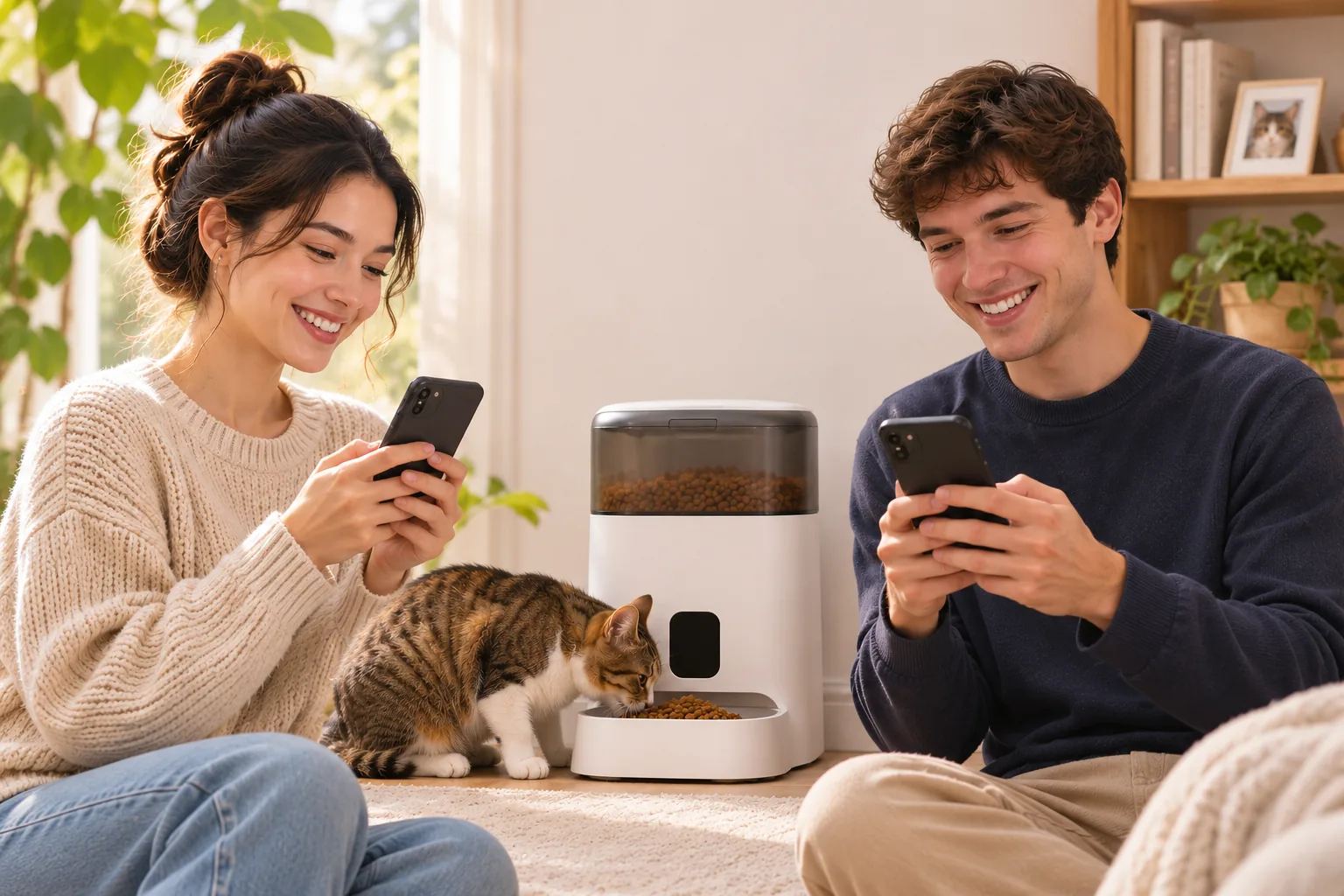
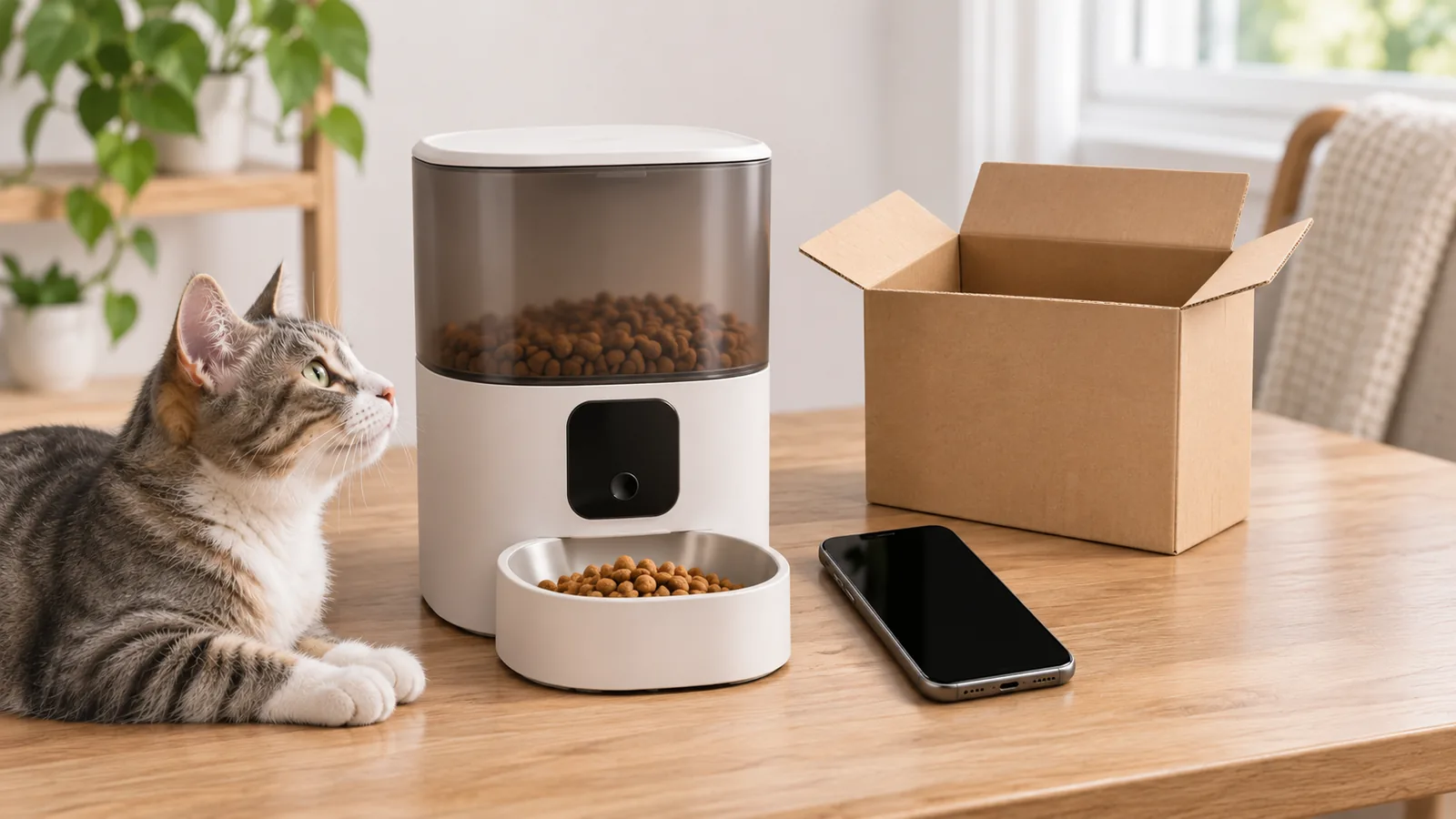
To set up a PETLIBRO feeder in the app, first confirm the model and whether this is truly a first-time addition. A feeder that was already paired and later shows offline needs reconnection help; this guide covers initial discovery. For PETLIBRO's general pairing checks, connect the feeder to external power, wait about 30 seconds, enable the app permissions it requests, and keep your phone close while trying to add the device.
Quick answer: Check the feeder's label, use its model's power instructions, allow Bluetooth and nearby-device access when requested, and confirm the Wi-Fi password before retrying. If a temporary phone hotspot works but home Wi-Fi does not, treat that as a clue about the network and ask its administrator or PETLIBRO support for help. It does not guarantee a connection.
Affiliate disclosure: As an Amazon Associate I earn from qualifying purchases.
On this page
- Confirm this is first-time pairing
- Check power and phone permissions
- Keep the phone nearby during pairing
- Check Wi-Fi details without changing router security
- AF203 camera feeder: verify the 203S label
- If setup still stops
Confirm this is first-time pairing
Look at the sticker on the feeder and note the model code before following button or power directions. Then identify where setup stops: the app cannot find the feeder, Bluetooth or QR pairing does not finish, or the Wi-Fi credentials are rejected. That detail helps you choose the relevant support page.
If the feeder has already been added and now appears offline, do not repeat an initial-add flow as a default fix. Reconnection depends on the model and its prior setup state, which is a separate troubleshooting question.
Check power and phone permissions
PETLIBRO's general pairing page says to connect the feeder to external power and wait about 30 seconds. It also asks users to enable Bluetooth, Nearby Devices, and Local Network permissions for the PETLIBRO app. Phone operating systems may show permission labels differently, so use the permission screen on your phone and grant only the access needed for the app's pairing flow.
Do not assume that battery backup is enough for app discovery on every feeder. The model-specific AF203 camera-feeder page, for example, says its app connection cannot be completed while the feeder is powered only by batteries. That restriction belongs to the exact AF203 variant covered below; it should not be copied to unrelated models.
Keep the phone nearby during pairing
When the app searches for a new feeder, keep the phone close to the device and follow the app's current add-device prompts. PETLIBRO lists Bluetooth pairing among its supported methods, and its general support page recommends retrying nearby Bluetooth pairing after checking power and permissions. A nearby phone can make discovery easier, but the source does not promise that proximity alone fixes setup.
Avoid pressing reset buttons simply because discovery takes more than one attempt. Button combinations vary by model and may change device state. Check the exact manual or support instructions first, and use any model-specific reset only if that source directs you to do so.
Check Wi-Fi details without changing router security
If discovery completes but the app rejects the network, re-enter the Wi-Fi password carefully and confirm that the phone itself has an internet connection. PETLIBRO's general pairing support suggests a temporary phone hotspot as a comparison test. If the feeder pairs through the hotspot but not through home Wi-Fi, that narrows the issue to the home network path; it does not show that the feeder will work reliably on that network later.
At that point, note the result and ask the network administrator or PETLIBRO support to interpret it. Do not change router security settings based on a generic pairing article. Network options can differ by model and router, and the sources here do not establish one Wi-Fi band requirement for all PETLIBRO feeders.
AF203 camera feeder: verify the 203S label
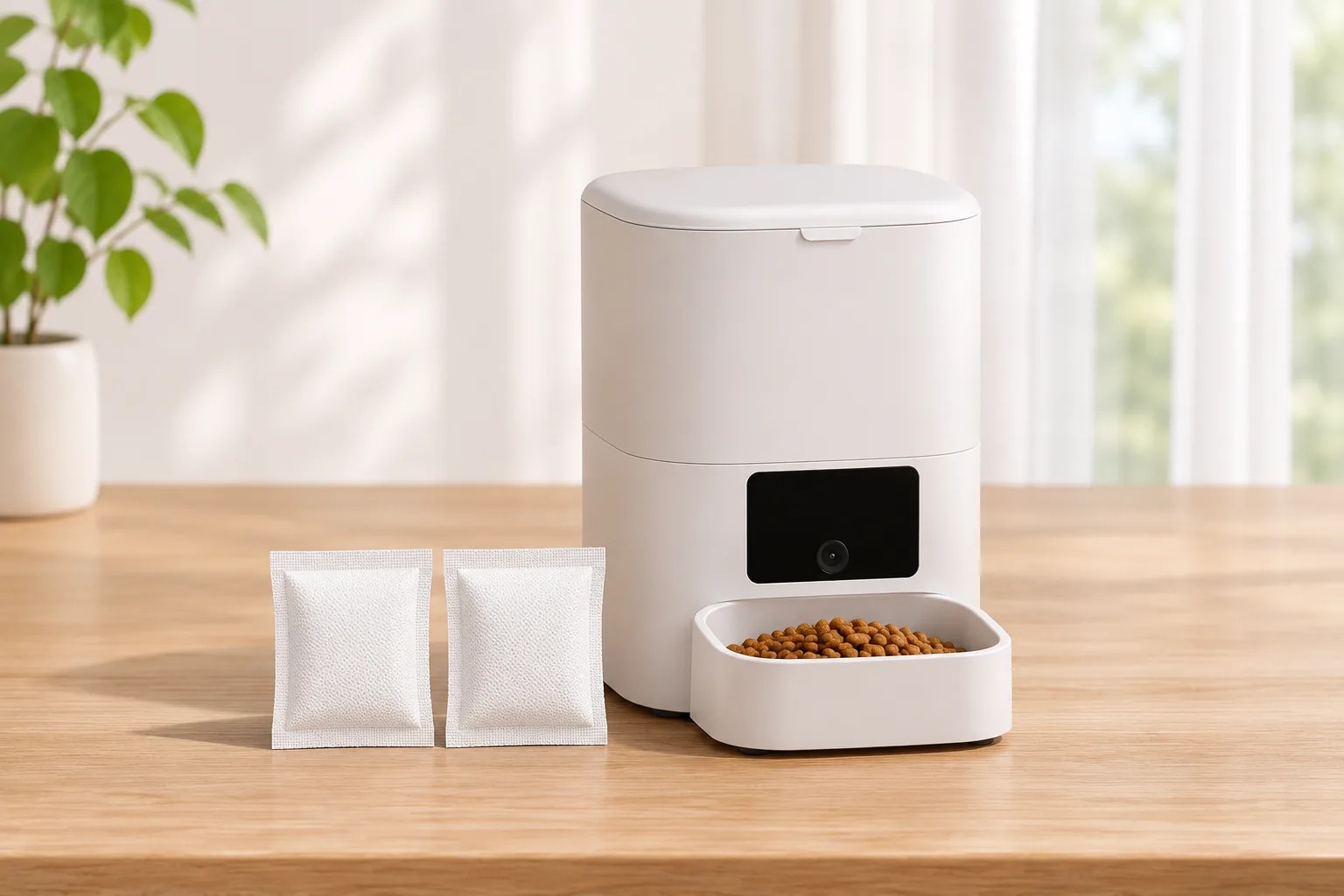
PETLIBRO's first-connection page for the AF203 camera feeder tells readers to check that the sticker on the bottom says 203S before using that page. For this variant, the instructions discuss a 5V/1A adapter and power cord, say that app connection is unavailable in battery-only mode, and describe location or other privacy permissions. The source also shows Bluetooth, QR-code, and hotspot pairing methods.
Use those points only when the label matches 203S. If your AF203 code differs, or you have another feeder family, check its own setup page instead of assuming the same power or app behavior. The source's unlock/reset button sequence is model-specific; this guide does not make it a default step for first pairing.
If setup still stops
Write down the model code, phone operating system, and the stage where pairing stops. Note which permissions are enabled and whether the feeder was connected to external power. If you tried a hotspot, record whether discovery or the Wi-Fi step changed. Send those details through the manufacturer's support channel so they can match the advice to your feeder.
For model and feature context before setup, see the existing PETLIBRO Granary Wi-Fi feeder guide. It is a model guide, not a substitute for the pairing steps for every PETLIBRO feeder.
Common first-pairing questions
Which phone permissions should I check?
PETLIBRO's general pairing support names Bluetooth, Nearby Devices, and Local Network permissions. Its separate AF203 203S page refers to location or other privacy permissions. The exact labels depend on the phone and app version, so follow the prompts and support instructions for your model.
Should I reset a new feeder before adding it?
Not by default. Check the sticker and current manual first; reset steps are model-specific and are not a universal first-time pairing requirement. Use a reset only when the instructions for your exact device call for it.
What does it mean if setup works on a phone hotspot?
It suggests the home network path may be involved, but it does not prove the cause or guarantee a permanent fix. PETLIBRO lists a hotspot as a comparison test. Share the result with your network administrator or manufacturer support instead of changing router security settings on your own.
Sources
- PETLIBRO: How to Fix Device Pairing Issues — external power, app permissions, close Bluetooth pairing, and hotspot comparison.
- PETLIBRO AF203 First Connection Help — only for the AF203 variant whose label reads 203S.
Editorial self-check
- Intent and scope: Covers adding a new device. Existing offline-device recovery (PP27) is explicitly separate and no unvalidated future URL is used.
- Evidence mapping: General steps use
petlibro_general_pairing; AF203 restrictions and options usepetlibro_af203_first_connectiononly with the 203S label boundary. - Safety and accuracy: No reset-first path, router security edits, universal Wi-Fi band statement, guaranteed pairing, fabricated test or model-agnostic power claim.
- Internal links: Only the baseline-verified Granary Wi-Fi guide is linked and identified as context.
- Affiliate disclosure: Required wording included; no affiliate recommendation or firsthand experience claim.
- Length and structure: About 900 words with TOC, direct setup checks, model-specific 203S section, FAQs, and useful escalation details.